Editing is a sequence of decisions about emphasis, not a test of how many controls you can use. “Keep the valley dark while revealing the illuminated ridge” is a workable goal. “Make it pop” is too vague to guide the next adjustment. A clear goal also tells you when to stop, especially when a long session makes heavy contrast or saturation begin to look normal.
Protect files before interpreting them
Copy the originals to your working storage and create a separate backup before formatting the memory card. Verify that files open, and periodically test restoration rather than assuming a successful copy guarantees a useful backup. Keep catalog files, sidecars and adjustment instructions with your backup plan; the raw file alone may not contain your edit history.
Use a consistent folder and naming scheme that lets you locate a session without relying on memory. Select images at a useful viewing size, then inspect finalists for focus, motion and expression. Do not discard a strong moment merely because a neighboring frame looks slightly cleaner at extreme magnification. Keep rejected files until your selection and backup are secure.
Choose software around the workflow
Adobe Lightroom Classic combines a catalog with raw development and output tools. Capture One offers raw development, catalog and session workflows, including tethering for supported cameras. darktable and RawTherapee provide open-source raw-development options. Adobe Photoshop and GIMP are useful for pixel-based work, but their project structure and raw-file handling differ from a dedicated raw catalog.
Check support for your exact camera, operating system and required features before committing. Compare the same files with similarly restrained settings. Default profiles, sharpening and noise reduction can make one application appear better immediately without establishing that its underlying processing suits your work. Pricing and licensing change; confirm current terms directly with the developer.
Set the tonal foundation
Begin with a suitable profile and a deliberate white balance. Then adjust overall exposure, highlight placement and black point. A raw file does not have a single finished appearance; the application renders it through a profile and processing pipeline. Differences between the camera preview and your editor are therefore not automatically errors.
Watch the histogram while judging the picture. Lifting every shadow can flatten the scene and reveal noise that was previously unobtrusive. Pulling highlights too far can make bright surfaces dull. Use local adjustments when the problem is regional rather than forcing a global slider to solve a small area. Keep intentional deep shadows if they support the image.
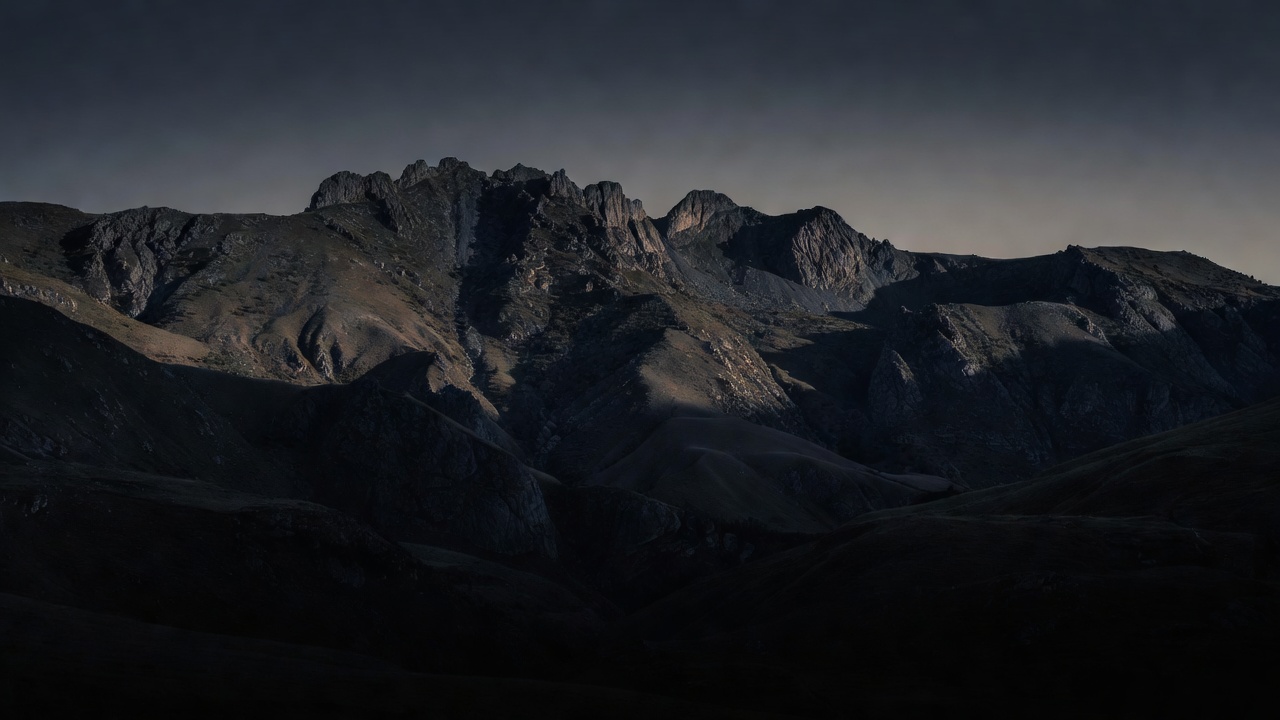
This paired illustration uses the same source file. It demonstrates a direction of change, not raw highlight recovery, calibrated color or the capabilities of a particular application.
Refine color and local emphasis
Correct a color cast only when it is unwanted. A warm sunset need not become neutral, and a portrait can retain some environmental color without looking incorrect. Use known neutral objects cautiously: a white shirt in colored light is not necessarily a neutral reference. Mixed lighting may require separate masks rather than one global temperature setting.
For portraits, retain skin texture and avoid treating every natural line as a defect. For landscapes, inspect foliage and sky after saturation adjustments; strong global changes can make them compete with the intended subject. Feather local masks, check their edges and toggle them off periodically. Halos around a ridge or face usually indicate an adjustment that needs a softer boundary or less strength.
Judge detail at two scales
Use full magnification to inspect noise, sharpening artifacts and mask edges. Use the expected display or print size to judge whether the image communicates. Noise reduction can remove fine texture along with noise; sharpening can create bright outlines without restoring missing detail. Neither can reliably repair substantial motion blur or a misplaced focus plane.
Apply capture sharpening conservatively, then output sharpening after resizing where your software supports it. Keep a non-destructive master or an appropriately layered project file for substantial retouching. Exported JPEGs are delivery files, not replacements for your originals and editing instructions.
Export for the actual destination
For general web viewing, sRGB with an embedded profile is a sensible default unless the destination specifies otherwise. For print, follow the lab’s file, profile and dimension requirements. Pixel dimensions determine available image data; changing a resolution label alone does not add detail. Soft-proofing with a suitable printer profile can help, but it is not a guarantee of a perfect match on an uncalibrated screen.
- Confirm crop, orientation and the intended pixel dimensions.
- Choose the required format, quality and embedded color profile.
- Apply output sharpening appropriate to size and medium.
- Review location metadata and remove sensitive information where needed.
- Open the exported file in another color-managed viewer.
- Check highlights, skin, fine edges and banding at final size.
Save a reusable export preset only after checking a real result. A preset is a starting condition, not proof that every destination will handle the file identically. If something changes unexpectedly, use the troubleshooting ledger to isolate profile, resizing and viewer differences.